Accpac
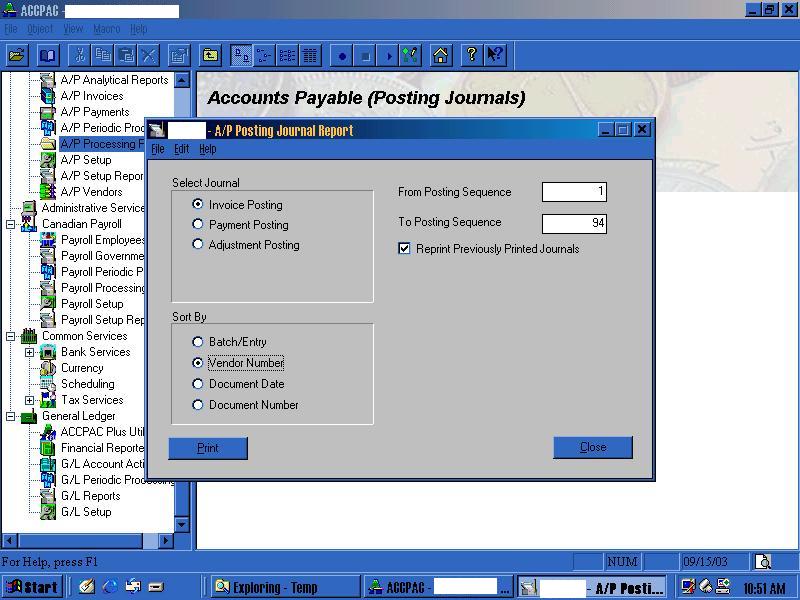
The file were looking for is the A/P Invoice Posting Journal:
- AP Transaction Reports on left,
- A/P A/P Processing Reports Posting Journals
- Select Journal: Invoice Posting
- Sort by: Vendor No
- From Posting Seq: 1
- To Posting Seq: Last Posted
- Reprint previously printed journals selected
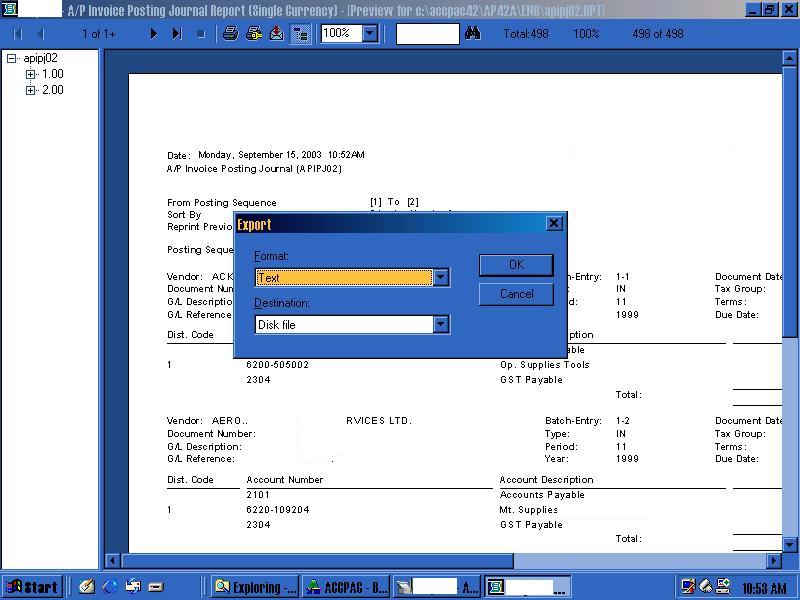
- Export Format: Text
- Dest: Disk
Alternative instructions:
Under Accounts Payable in the left window, select A/P Processing Reports or A/P Transaction Reports - select Posting Journals on the right window. In the window that comes up the following options should be chosen:
- Select Journal: Invoice Posting
- Sort By: Vendor Number
- From Posting Sequence should be 1
- To Posting Sequence should be your last posted
- Reprint Previously Printed Journals should be selected
- Click Print
The report will appear on your screen, click on the export button on the top of the report and choose:
- Format: Text
- Destination: Disk File
- and click OK
- select the location and filename to save