SAP
There are various flavours of SAP and its related interfaces out there, including SAP Business One, ERP (Sometimes referred to as Intuitive ERP) and Easy Access. Instructions for each are below:
SAP Easy Access
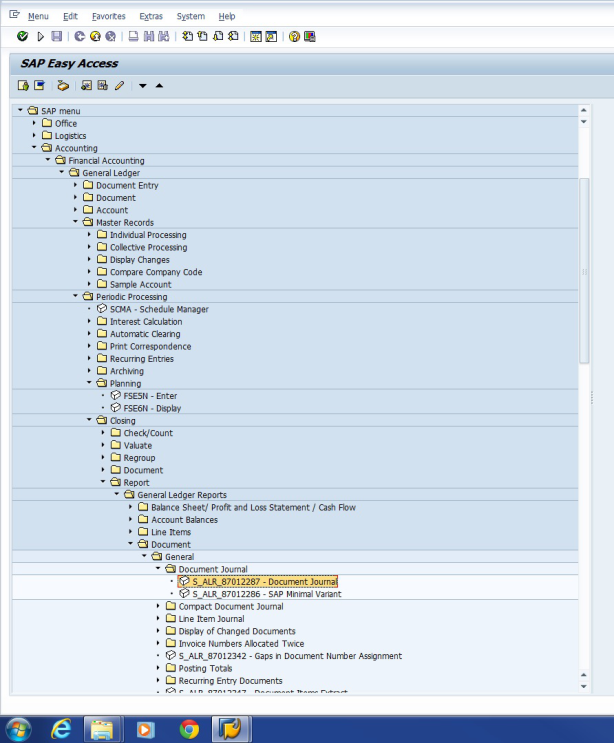
In the SAP Menu, choose:
Accounting - Financial Accounting- General Ledger - Periodic Processing - Closing - Report - General Ledger Reports - Document -General - Document Journal
run S_ALR_87012287 - Document Journal
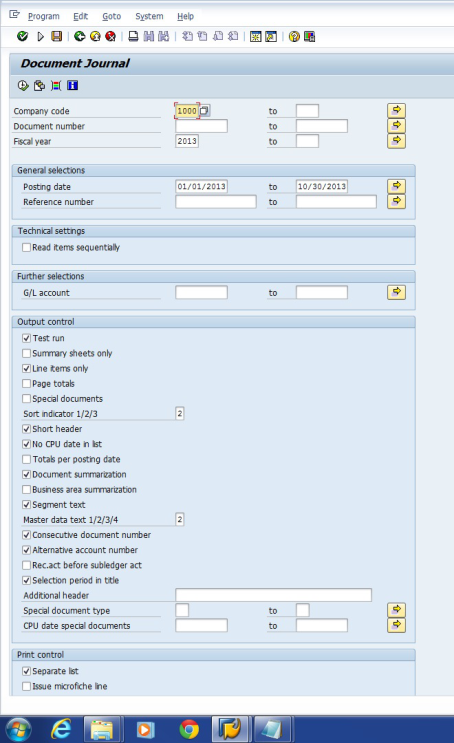
Select the appropriate Company Code
Change Fiscal Year
Change Posting Date to match fiscal year , ie if you chose 2012 fiscal year, and your fiscal year is calendar, selection 01/01/2012 in the first Posting date field, and 12/31/2012 in the last
Select the following options:
Line items only
Short Header
No CPU Date in list
Master data text: Select the shortest item which still includes name (typically option 2 which is name1,city)
To Export:
List - Save - File
select unconverted
If that option is not available, choose this:
List - Save - File
select Spreadsheet
Repeat this process for each fiscal year, going back 4.
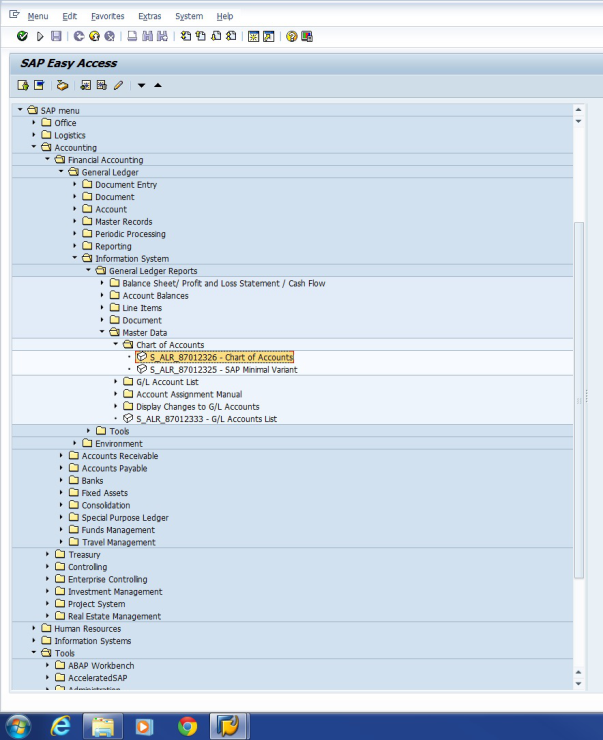
Chart of Accounts:
SAP Business One
Two Methods:
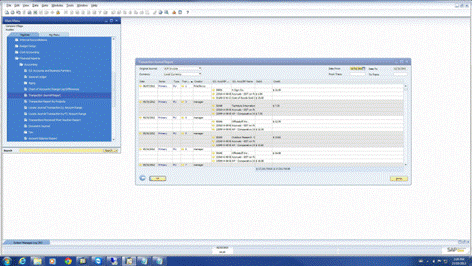
In the Main Menu, under Modules, select:
Financials - Financial Reports Accounting - Transaction Journal Report
Select: All Transactions
Posting Date from: "beginning of 4 year period" to "end"
Run Report
Select File - Export - MS-EXCEL
Choose filename and location to save
Select OK if system message asks about currency symbols
Close excel and select "don't save" if prompted
Email/zip/email the files
On some older SAP Business One systems the process is slightly different:
Financials Financial Reports Accounting Transaction Journal Report
In the Drop down box for original journal field select: ap invoice.
Then select the date range.
Export the report as a TXT file
SAP ERP
Report: GL Transaction Details
Select the following:
Source: AP Invoice
Group by: Transaction Number
Year and period (4 years ideally)
Choose the arrow button (to Export to Excel rather than preview)
This report typically contains the Source Ref field which contains Vendor No and Invoice No. Since it doesnt contain Vendor names, we typically require a Vendor Listing in addition to this report:
Report: Vendor Listing
Criteria: All Vendor IDs, All Status Codes, All Currencies, Sorted by Vendor ID