QUICKBOOKS
These should work for most current Quick Books versions, for Quickbooks Online, see below.
Report Name: Custom Transaction Detail Report
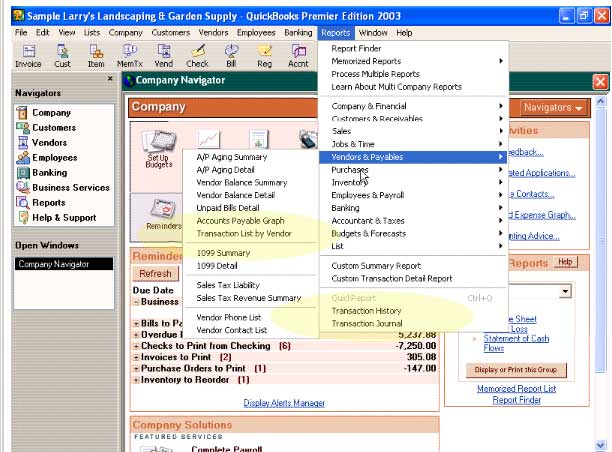
Location: Found under Reports, sometimes at the bottom of the menu, sometimes under Custom Reports, then Transactions Detail
Change the date range to go back 4 years.
Add columns that may be helpful:
We need to see at least Source Name (this gives us proper vendor name)
consider including PO, Terms, Item and Item Description, Sales Tax Code, and any other fields you use.
Press OK - This may take some time
Press Export, Excel is the default and is fine. Once the export is done, save the file(s) and send to us using the Upload Data link at the top of this page or by email.
IMPORTANT: Make sure the Excel file is not truncated at 65536 rows. If so, you'll have to split this report to multiple lines. For some reason exporting as CSV is truncated at 32769 rows, so until Quickbooks fixes this we recommend export to Excel
Quickbooks Online
The report: "Transaction Detail by Account" is what we require.
Go to Reports: Navigate to the "Reports" section in the left-hand menu.
Search: Type "Transaction Detail by Account" into the search bar.
Select: Check the boxes for "Memo/Description," "Date," "Amount,", "Supplier", "Transaction type", "DR" and "CR" and any other fields you use.
Run Report: Click "Run report" to apply the changes.
In these online systems it's often a good idea to run reports like this in smaller periods like fiscal years as the full 4 year period can often be too much to export at once.
Older System Instructions:
Reports > Custom Transaction Detail Report
Change Date Range to cover the last 4 years.
*Optional: Go to Filters Change Transaction type, Choose Select Transaction Types to be all purchase related ( Bill, Invoice, Deposit, Credit Memo)
Click OK
Choose Export
Select Excel
Click Export. (if you get an error message here saying that the file is too big for Excel, then go back to the Date Range and do an export for each year separately)
Old Instructions:
Depending on your setup and version, there are a few reports, which will give us the invoice breakdown; Under Reports -> Vendors & Payables; Transaction List by Vendor (this report apparently has no tax information?), OR, more likely to contain the info were looking for;
Under Reports (both near the bottom) - Transaction History, Transaction Journal