SIMPLY ACCOUNTING
* For more recent versions of Simply, please follow the instructions at the end of this section
If you are running 2008 Simply Accounting 2008, step 2 in the instructions below should be Reports>Transaction Details>Purchases
Exporting the Purchase Journal data from Simply Accounting 2003 Basic
- Open Simply Accounting.
- Open the Simply Accounting Data File for the year you wish to report on.
- From the Main Menu choose Reports > Journal Entries > Purchases.
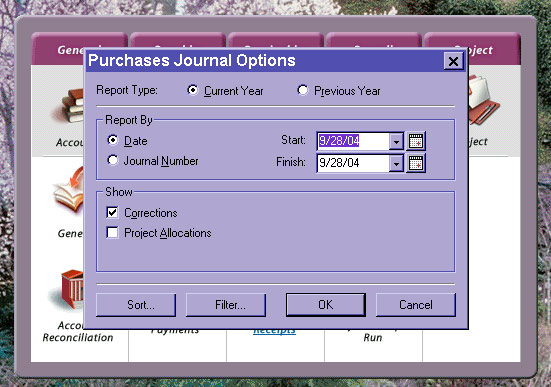
- In the Purchase Transactions Options window:
- For Report Type choose Current Year. Once you have finished you can rerun the report and choose Previous Year.
- For Report By choose Date. Change the Start Date to the beginning of the fiscal period.
- Click OK to run the report.
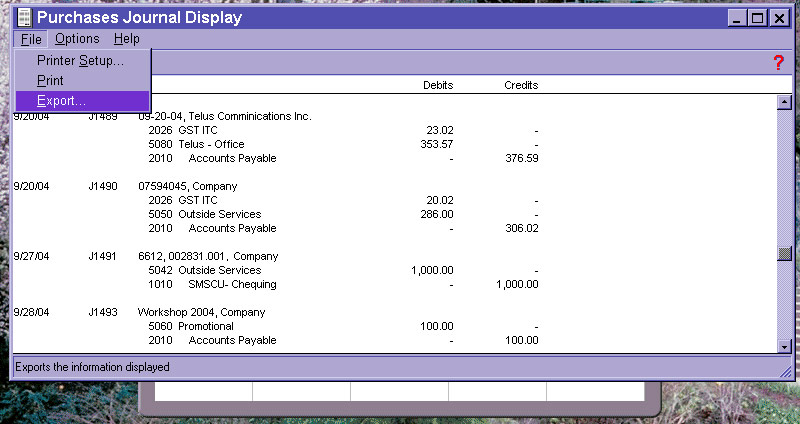
- From the Purchase Journal Display Menu select File > Export.
- Enter a File Name (E.g. AP_2004 if this is for the fiscal 2004) (2), select Comma Separated (*.csv) as the file type (3), then click SAVE (4).
- Repeat the export procedure, Steps 1 through 6, for previous years (up to four) if available.
Exporting the Purchase Journal data from Simply Accounting v9.0
- Open Simply Accounting.
- Open the Simply Accounting Data File for the year you wish to report on.
- From the Main Menu choose Reports > Journal Entries > Purchases.
- In the Purchase Transactions Options window:
- For Report Type choose Current Year. Once you have finished you can rerun the report and choose Previous Year.
- For Report By choose Transaction Number.
- Click OK to run the report.
- From the Purchase Transactions Display Menu select File > Export.
- Enter a File Name (E.g. AP_2004 if this is for the fiscal 2004) (2), select Comma Separated (*.csv) as the file type (3), then click SAVE (4).
- Repeat the export procedure, Steps 1 through 6, for previous years (up to four) if available.
*Instructions for newer versions of Simply:
In newer versions of Simply you can run the report in the following way:
- Click on Reports in the top menu
- Choose Journal Entries
- Choose Purchases
- You can run a report for each fiscal year, simply choose the year from the drop down box. All the options are fine as is, so click OK.
- The report will run and you can click on "export" at the top
- Choose Comma Separated (*.csv) as the file type, enter the filename you would like and click OK.
- Repeat process for each year, output the file by giving it a name (ie ./gstreport2016.txt), Choose Y for print file format, then choose 1 to create file.
In addition to this report, we need a Vendor List. Follow the same steps for ACVENXRF giving it a filename of vendorlist.txt or similar.